
100JSProjects
LearnProjectsExplore all projects
100JS_WORKSPACE/Build · Learn · Repeat
100JSProjects

Practical HTML, CSS, and JavaScript projects designed to help you turn concepts into real skills—one build at a time.

01Explore

./All projects./Learning guides./About./Contact./Privacy

02Resources

./GitHub repository./Support the project

© 2026 100 JS Projects. Built for developers.

TermsCookiesContact
JS//Projects/Navbar Menu

Navbar MenuHTML, CSS & JavaScript Project

HTML5CSS3JavaScript
View Source CodeLive Demo
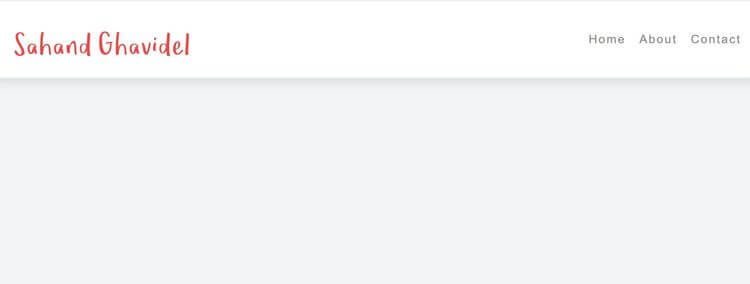
Navbar Menu project previewTry Live Demo
What you'll build

Navbar Menu

In this project, we create a responsive navigation bar with a logo and three menu items. We will obtain the logo from the internet and ensure that the navigation bar changes based on the browser window's size. Clicking on the icon will reveal the home and about menu items. Each menu item will feature a hovering effect when the mouse is moved over it. We will utilize JavaScript to modify the classes of the HTML text, apply different CSS styles to each class, and use JavaScript to add or remove them accordingly.

HTML
— Structure
CSS
— Design
JavaScript
— Logic
Complete project files

Build It from the Source Code

Create these three files, copy the code into each one, then open index.html with Live Server.

Project structure
navbar/
├── index.html
├── style.css
└── index.js
1
2
3
4
5
6
7
8
9
10
11
12
13
14
15
16
17
18
19
20
21
22
23
24
25
26
27
28
29
30
31
32
33
34
35
36
37
38
39
<!DOCTYPE html>
<html lang="en">
  <head>
    <meta charset="UTF-8" />
    <meta http-equiv="X-UA-Compatible" content="IE=edge" />
    <meta name="viewport" content="width=device-width, initial-scale=1.0" />
    <title>Navbar project</title>
    <link
      rel="stylesheet"
      href="https://cdnjs.cloudflare.com/ajax/libs/font-awesome/5.15.3/css/all.min.css"
      integrity="sha512-iBBXm8fW90+nuLcSKlbmrPcLa0OT92xO1BIsZ+ywDWZCvqsWgccV3gFoRBv0z+8dLJgyAHIhR35VZc2oM/gI1w=="
      crossorigin="anonymous"
    />
    <link rel="stylesheet" href="styles.css" />
  </head>
  <body>
    <nav>
      <div class="nav-main">
        <div class="nav-header">
          <img src="./logo.svg" alt="logo" />
          <i class="fa fa-bars" aria-hidden="true"></i>
        </div>
        <ul class="menu">
          <li>
            <a href="#">Home</a>
          </li>
          <li>
            <a href="#">About</a>
          </li>
          <li>
            <a href="#">Contact</a>
          </li>
        </ul>
      </div>
    </nav>
    <script src="index.js"></script>
  </body>
</html>

JS// Related Projects

Keep Building with Similar Projects

Continue your learning journey with these handpicked projects that share similar concepts and technologies

Simple Stopwatch project preview
HTMLCSSJavaScript

Simple Stopwatch

Welcome to the Stopwatch Project! We will create a timer displayed at the top, along with three buttons - start, stop, and reset. Clicking the START button will begin the timer. The STOP button will pause the timer using a JavaScript method called SetInterval, which can be cleared using clearInterval. The RESET button will reset the timer to zero. If you click STOP and then START again, the timer will continue from the previously elapsed time. We'll start by installing CSS for the buttons' design and hover effects, then use JavaScript to get the browser time, manipulate the content, replace it with the calculated time, and provide the start, stop, and reset functionality.

View project
Weight Converter project preview
HTMLCSSJavaScript

Weight Converter

Let's create a weight converter project that converts pounds to kilograms. The webpage features an input field where users can enter a weight in pounds, and the webpage automatically displays the equivalent weight in kilograms. After 10 seconds, the result is removed, and the input field is emptied using the 'set time out' method. We've also incorporated an error handling feature to handle negative input numbers. If the user enters a negative number, the webpage displays an error message, "Please enter a valid number." We'll learn how to handle error situations and remove the error message after two seconds using an event listener for the input field. The event listener will call a function that performs the desired actions.

View project
Dice Roll Simulator project preview
HTMLCSSJavaScript

Dice Roll Simulator

Welcome to the Dice Roll Simulator project. The final version of the project features a dice at the center of the screen and a "Roll dice" button. The button triggers an animation and generates a random number, which is displayed in the center of the dice when clicked, t. Additionally, the number is added to a history list. To achieve this, we used modern CSS to style the dice and added a JavaScript event listener to the button. The listener generates a random number, saves it to an array, and updates the history list.

View project
{ }View All Projects